

Audi MMI 3G Basic uses a different navigation update procedure from MMI 3G High, MMI 3G Plus and newer MIB systems.
This guide is specifically for Audi MMI 3G Basic systems identified by software trains beginning with:
BNav_
Typical examples include:
BNav_EU_…
BNav_US_…
BNav_EU_Pxxxx_D1
BNav_EU_Kxxxx_D1
If your software version begins with HNav_, HN+, HN+R, RMC_, MHI2_, MHI2Q_, MHS2_, MH2p_ or MHI3_, stop here and use the update guide written for that platform.
The complete process usually consists of:
- identifying the MMI and current firmware,
- checking map compatibility,
- preparing the SD card,
- installing the navigation database,
- completing map activation if required,
- and verifying the new navigation version.
Before starting, record the complete firmware version and current navigation database version.
Not sure which MMI you have?
https://mmiupdates.com/tutorials/how-to-check-what-mmi-do-i-have-mmi-2g-3g-3g-types-of-audi-navigation-systems/
MMI 3G High / 3G Plus map update guide:
https://mmiupdates.com/tutorials/how-to-update-maps-in-audi-mmi/
Table of content.
- What’s my MMI version?
- How to get latest maps for my MMI?
- How to update my maps?
- How to unpack files & prepare SD CARDs?
- How to activate my maps?
- COMMON ERRORS LIST AND EXPLANATION.
💡 Sick of outdated factory maps?
Bring your Audi into the modern era! Upgrade your infotainment system with our premium wireless interface and enjoy seamless access to Apple CarPlay and Android Auto directly on your original factory screen.
Upgrade Your Audi Today & Shop NowHow to Check If You Have MMI 3G Basic
First of all, you have to recon which MMI your car have.
The best way it’s just to go to the Engineering menu and check the current firmware version.
You can enter there by pressing the CAR and SETUP (or sometimes MENU or BACK) buttons on your MMI console.
This video might be useful

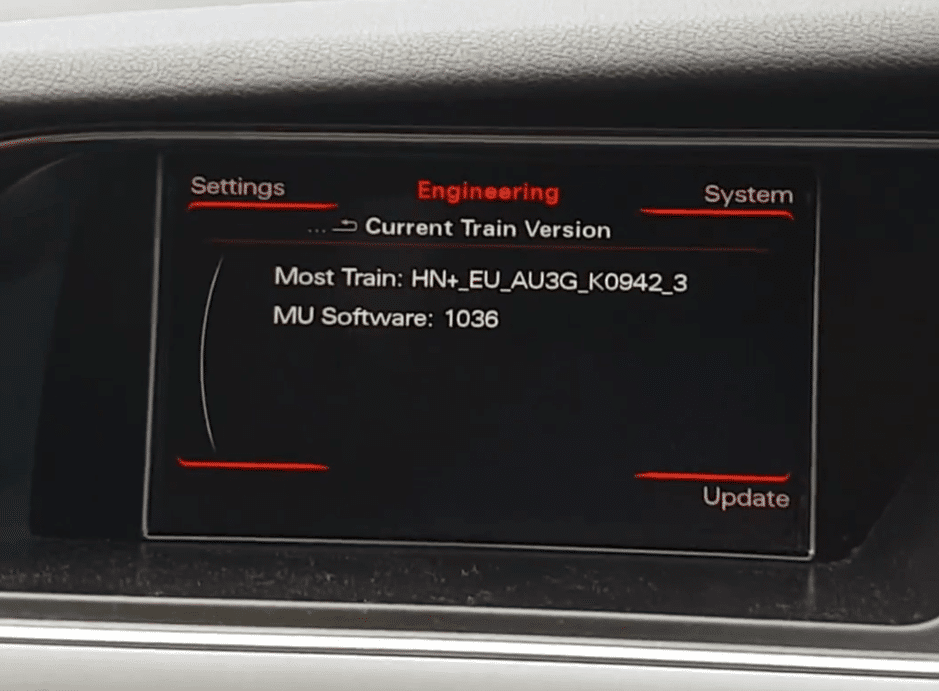
When you get to the engineering menu, you will see screen like above.
Most Trans it’s your currentMMI version.
You might have also different MMI’s:
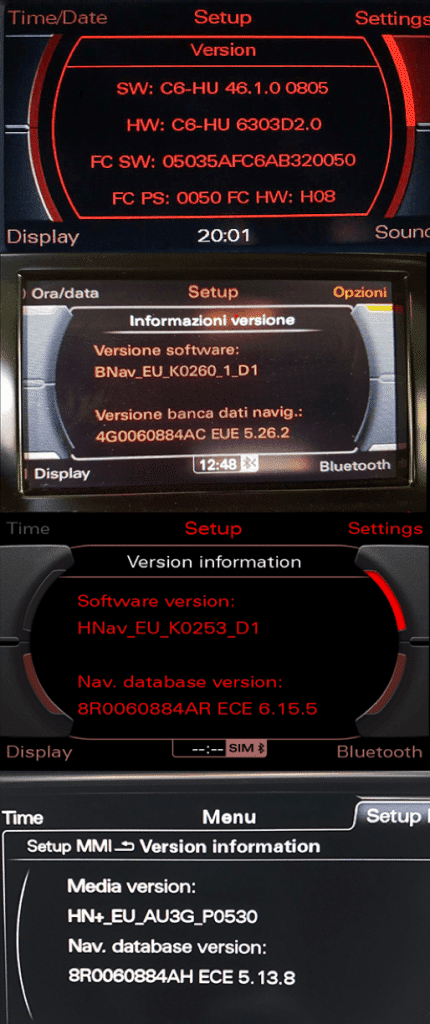
When you are already in Engineering Menu you can now recognise your MMI, so:
- MMI 2G: SW: XX-XX XX.X.X XXXX
- MMI 3G Low/Basic: BNav_XX_XXXXX
- MMI 3G High: HNav_XX_XXXXX
- MMI 3G+: HN+_XX_XXXXX or HN+R
- MMI RMC: RMC_XX_XXXXX
For this guide, continue only if the software train begins with:
BNav_
BNav identifies Audi MMI 3G Basic.
Examples:
BNav_EU_P0206_D1
BNav_EU_K0260_1_D1
If you see HNav_, HN+, HN+R or another prefix, this is not the correct map installation procedure.

Once you have identified the system, check whether your current firmware is suitable for the map release you want to install.
A firmware update is not automatically required for every map update.
Check compatible firmware and navigation updates here:
How to Choose the Correct Maps for MMI 3G Basic
MMI 3G Basic requires navigation maps specifically prepared for the BNav platform.
Do not install maps intended for:
- MMI 3G High / HNav,
- MMI 3G Plus / HN+ or HN+R,
- RMC,
- MIB1,
- MIB2,
- MH2p,
- or MIB3.
The map package must also match the correct navigation region.
Depending on the vehicle and market, this may include Europe, North America or another regional database.
Do not choose a map update only by Audi model or production year.
Two Audi vehicles of the same model can use different infotainment systems.
If you know your complete software version, check compatible updates here:

If you now know what’s your current maps version and type of MMI, you can download maps from here!
But please be careful, because different MMI systems has a different map update.
If you have MMI 3G PLUS you have to looking for MMI 3G Plus maps, same for MMI 3G High and Basic. All maps are selling separately on our website.
Verify the Map Package Before Installation
Before installing any navigation database, verify that:
- the package is intended for MMI 3G Basic / BNav,
- the navigation region is correct,
- all archive parts were downloaded successfully,
- extraction completed without errors,
- and the package matches the required firmware level.
Incomplete or incompatible navigation files can cause the update to fail or leave the navigation database unavailable.
How to Install Maps on Audi MMI 3G Basic
Before starting the installation:
- confirm that your MMI firmware begins with BNav_,
- verify map compatibility,
- fully extract the downloaded archive,
- prepare the SD card correctly,
- and make sure the MMI has fully booted.
Use reliable update media and maintain stable vehicle voltage during the procedure.
Prepare the SD Card
Format the SD card as FAT32 unless the instructions supplied with the specific map package state otherwise.
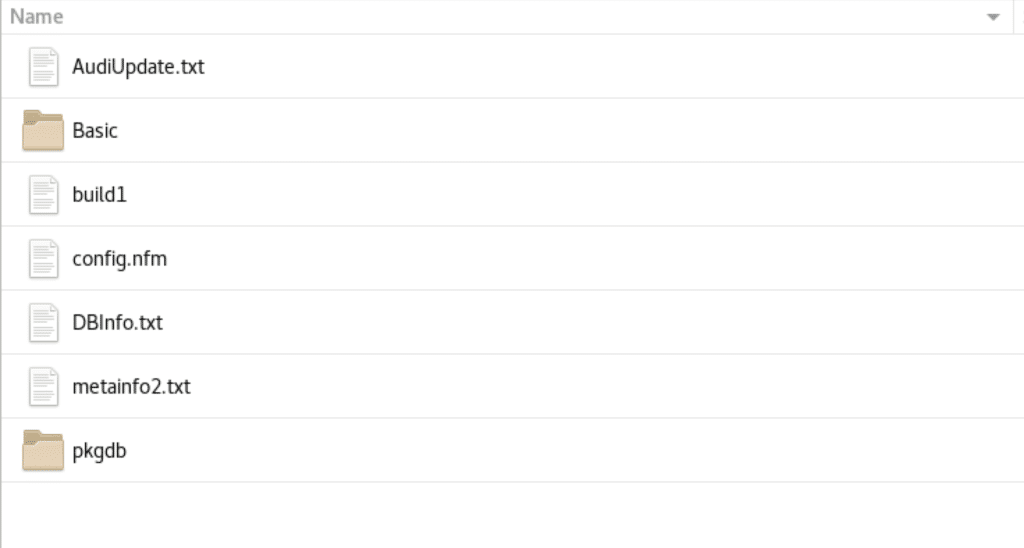
After extracting the map archive, copy the update files directly to the root of the SD card.
Do not create an additional parent folder.
Correct:
SD CARD
├── update files
├── map data
└── required metadata files
Incorrect:
SD CARD
└── MMI-3G-BASIC-MAPS
├── update files
└── map data
Format your SD CARD in FAT32.
Extract downloaded files – how to do? Click here – there’s a complete guide how to deal with downloaded files.
Copy the root of your map in the SD card (like picture below).
Can I Prepare the SD Card on macOS?
Yes, but macOS may create additional hidden metadata files such as .DS_Store and resource-fork files.
If you prepare the card on a Mac, make sure only the files required by the MMI update remain on the SD card before inserting it into the car.
A cleanly prepared FAT32 card is the simplest option.
You can also follow our video guide for preparing MMI update media on macOS.
Start the MMI 3G Basic Map Update
Allow the MMI to boot completely before inserting the map SD card.
Insert the SD card into one of the available MMI SD slots.
If the package is prepared correctly, the system should detect the update media and display the update screen.
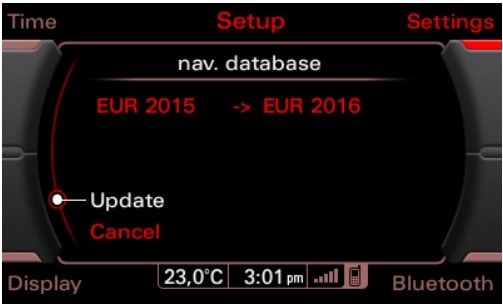
Review the detected update before confirming installation.
Insert the SD card with the MAP in one of the two SD card slots. After 30-60 seconds the update menu will appear. Hit “Yes” here
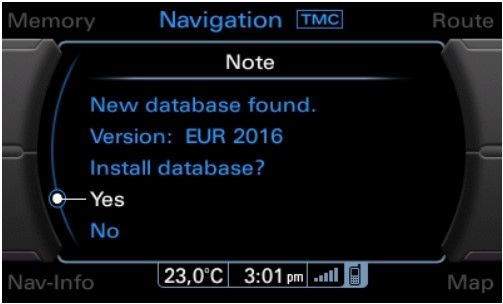
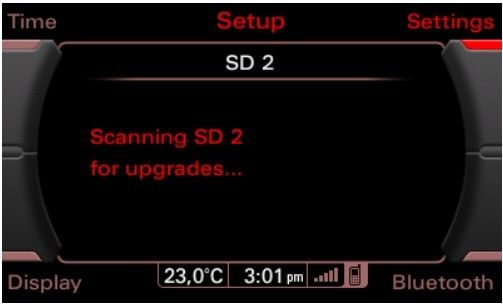
Choose “Update”

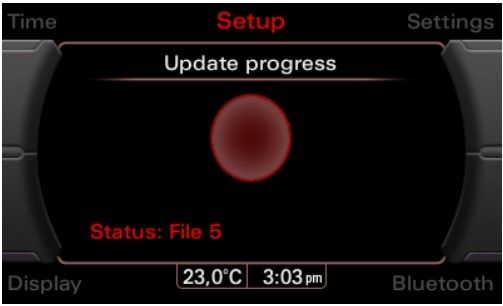
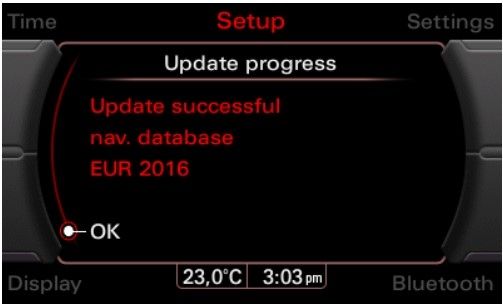
The MMI will copy the required update data and prepare the navigation database installation.

How to Activate MMI 3G Basic Navigation Maps
Map installation and map activation are separate stages.
If the map package requires activation, use only an activation method compatible with:
- MMI 3G Basic,
- your current firmware,
- and the installed navigation database.
Allow the MMI to boot completely before inserting activation media.
Do not use an activation package intended for another MMI generation or firmware version.
Caution: Do NOT insert the SD until MMI has fully booted you can brick your unit!
Caution: Please double check that you’re using the correct activator for your firmware, using incorrect activator will result in a bricked (dead) MMI unitFormat your SD in FAT32.

Copy the root of your activation in to the clear SD card – it has to be formatted to FAT32!
Make sure that MMI is fully booted – after final reboot!
(press all buttons once RADIO, CAR, NAV, MEDIA, TEL).
Wait until all options are ok (no options in grey) even when all options are ok wait a minute more.
Latest firmware and maps – must already be installed
Insert the SD card with the activator in one of the two SD slots and wait around 30 seconds, screen with instructions should appear. After that reboot your MMI and now you can use your new maps.


COMMON ERRORS LIST AND EXPLANATION – CLICK HERE
MMI 3G Basic Map Update Not Starting – What to Check
If the update does not start or the MMI reports that no update is available, check the following:
1. Confirm the MMI system
The firmware must begin with BNav_.
2. Check the map package
Make sure the maps are specifically intended for MMI 3G Basic.
3. Check the SD card structure
Update files must be in the expected location and must not be hidden inside an additional parent folder.
4. Extract the complete archive
If the package contains several archive parts, all parts must be downloaded before extraction.
5. Check firmware compatibility
Some map releases may require a particular minimum firmware level.
6. Try another SD card
A damaged or incompatible SD card can prevent the MMI from detecting the update.
7. Allow the MMI to fully boot
Do not insert activation media while the unit is still starting.
New Maps Installed but Navigation Is Blocked
If the new navigation database installs successfully but navigation remains blocked, do not immediately reinstall the complete map package.
First verify the navigation activation.
A successful map installation does not always mean that the required navigation licence or activation has also been completed.
Check that the activation method matches:
- the BNav firmware,
- the map release,
- and the navigation region.
What to Check After the MMI 3G Basic Map Update
After completing the map installation and activation, verify:
- the navigation database version,
- map loading,
- GPS position,
- route calculation,
- voice navigation,
- navigation licence status,
- and any error messages displayed by the MMI.
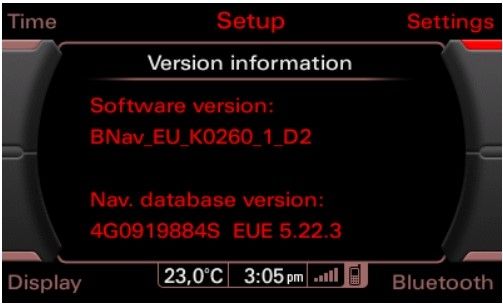
Open the Version Information screen and confirm that the new navigation database is shown.
If navigation works correctly after reboot, the update is complete.
Frequently Asked Questions
What is Audi MMI 3G Basic?
MMI 3G Basic is an Audi infotainment system identified by software trains beginning with BNav_.
How do I update maps on MMI 3G Basic?
Check the current BNav firmware, choose compatible maps, prepare the SD card, install the navigation database and complete activation if required.
Is MMI 3G Basic the same as MMI 3G High?
No. MMI 3G Basic uses BNav_, while MMI 3G High uses HNav_. They use different update packages.
Can I use MMI 3G Plus maps on MMI 3G Basic?
No. MMI 3G Plus uses HN+ or HN+R software and requires a different navigation package.
Do I need to update firmware before installing MMI 3G Basic maps?
Not always. Check whether the map release requires a minimum firmware version before updating.
What filesystem should I use for the SD card?
FAT32 is commonly used for MMI 3G Basic update media. Follow the instructions supplied with the specific package.
Can I prepare the SD card on a Mac?
Yes, but remove unnecessary macOS metadata files and verify the final SD card structure before using it in the MMI.
Why does MMI 3G Basic say there are no updates?
Common causes include the wrong map package, incorrect SD card structure, incompatible firmware or incomplete extraction.
Why does the map activator not start?
Check that the MMI has completely booted, that the activation files are prepared correctly and that the activation method matches your firmware and map release.
Why are my Audi maps blocked after updating?
The navigation database may have installed correctly but still require compatible activation.
Can MIB2 maps be installed on MMI 3G Basic?
No. MIB2 and MMI 3G Basic use different infotainment platforms and different navigation databases.


Hi there . Try to install the maps EUE 5.33.2 but when I press the Start button nothing move ,
Hello, I have updated the software of my basic mmi to the Bnav_eu_k260_1_d1 version, but now it does not take me maps from 5.32.2, I have tried with another sd and it does the same: it tells me at the end: there are no updates, what could it be?, thanks.
Hi, Just updated West Maps on a RHD A6 C6 from 2013 > Latest with 3G Basic MMI Worked flawlessly 👍😎👍
Activated with no issues ….1st time my Sat Nav hasn’t been Blocked !!! THANK YOU 👏
Hi, Just updated firmware on a A6 C6 from 2013 > Latest with 3G Basic MMI Worked flawlessly 👍😎👍
Hello!
I’ve updated software from BNav_EU_P0260_D1 to BNav_E_K0260_D1 and the maps from 5.20.4 to latest.
But the activator doesn’t start at all from the SD. I wait for all the processes to start and then insert SD-card, nothing happens.
What could be the issue?
hi, I have problem, i dont have file fcs when i wont up date maps. i do everything with green menu and firmware.
Dear sir,
Do u have update of firmware n map for q7 2010 my location is at malaysia ,?