How to Install Android TV on Audi MMI 3G Plus
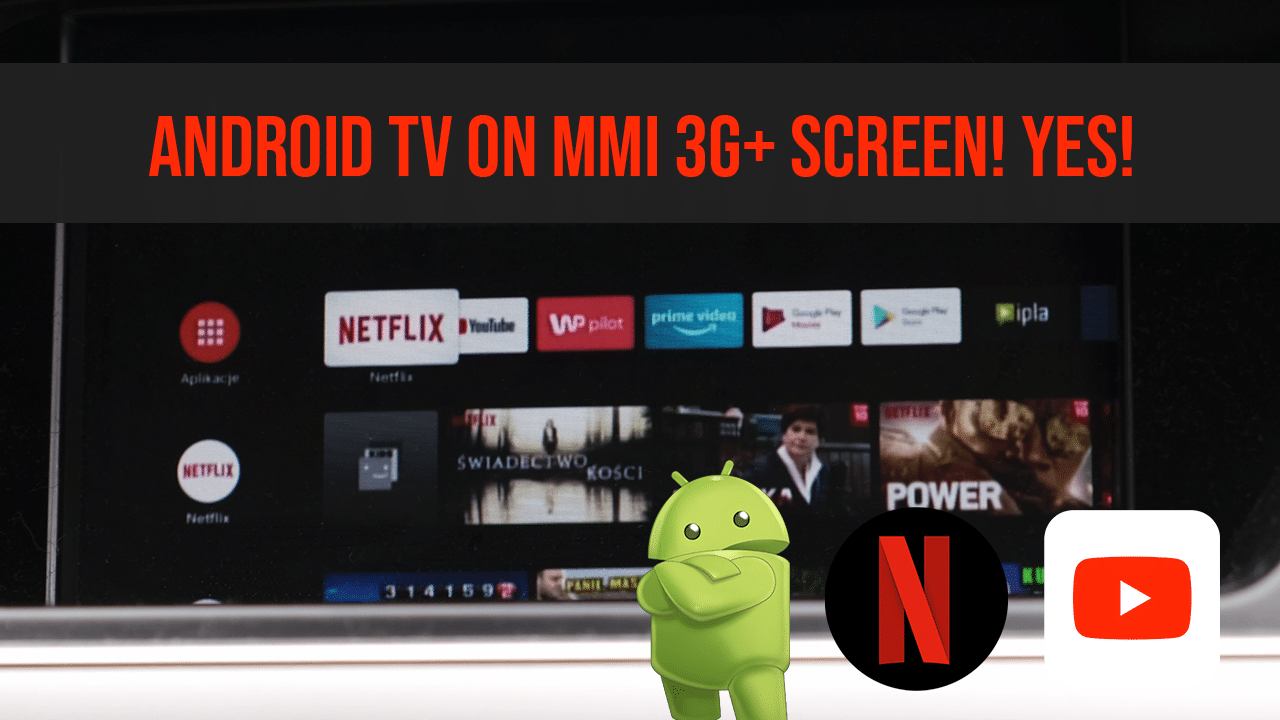
A streaming stick can be connected to a compatible Audi MMI 3G Plus system through the vehicle’s AMI interface. Because the MMI does not accept HDMI directly, the digital HDMI signal must first be converted to analogue composite video and stereo audio.
The installation documented here uses:
Android TV stick → HDMI-to-AV converter → RCA adapters → AMI-to-RCA cable → Audi MMI 3G Plus
This is a hardware video-input installation. It is not Android Auto and does not add touchscreen control to the factory MMI display.
Important safety information
Video displayed on the front MMI screen must never distract the driver. Use video entertainment only while parked or where it can legally and safely be viewed by a passenger.
Comply with the laws that apply where the vehicle is used. Do not operate the Android TV interface or watch video while driving.
Compatibility requirements
This installation requires:
- a compatible Audi MMI 3G Plus system,
- a working Audi Music Interface connection,
- an AMI cable that supports composite video and audio input,
- an accessible and properly protected power supply,
- a method of controlling the Android TV device.
Do not assume compatibility based only on the Audi model. Check the MMI version and confirm that the AMI input supports video.
Components required
Android TV box or streaming stick
The documented installation used a Xiaomi Mi TV Stick.
A powerful 4K streaming box is unnecessary because the signal is converted to analogue composite video before it reaches the MMI display. Image quality will therefore be limited by the converter and factory screen.
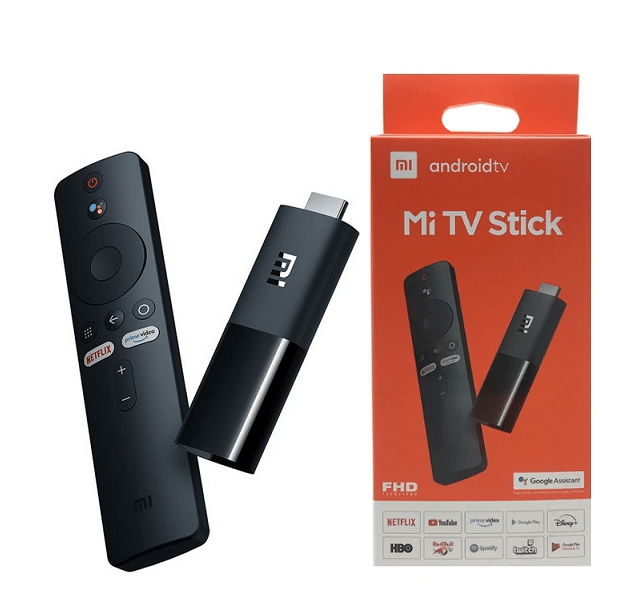
The device should include its own remote control or another supported control method. The MMI buttons do not control the Android TV interface through this connection.
AMI-to-RCA cable
The AMI-to-RCA cable connects the composite video and analogue audio outputs to the Audi Music Interface.
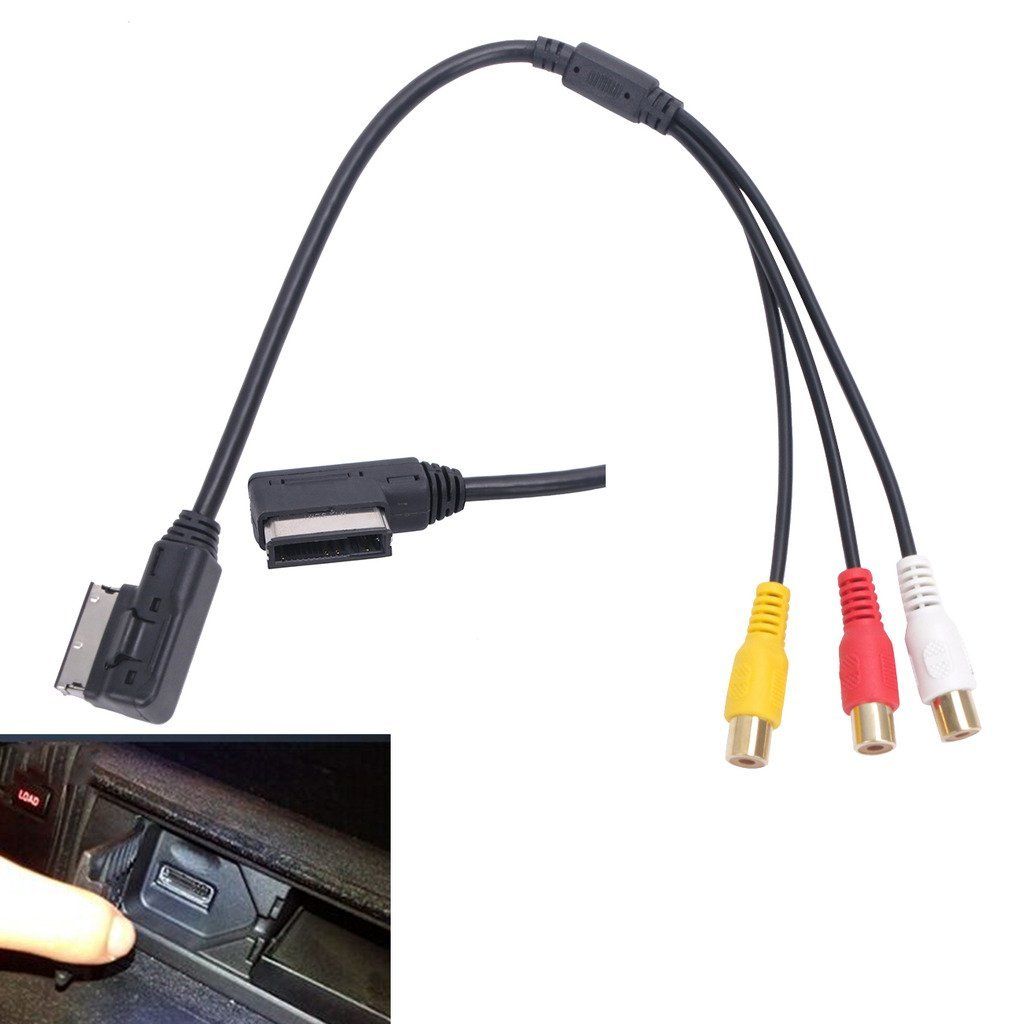
The cable must support video. An AMI cable intended only for analogue audio may not carry the picture signal.
HDMI-to-AV converter
The Android TV device provides a digital HDMI output. Audi MMI 3G Plus does not accept this HDMI signal directly.
An active HDMI-to-AV converter is required to produce:
- yellow RCA composite video,
- white RCA left-channel audio,
- red RCA right-channel audio.
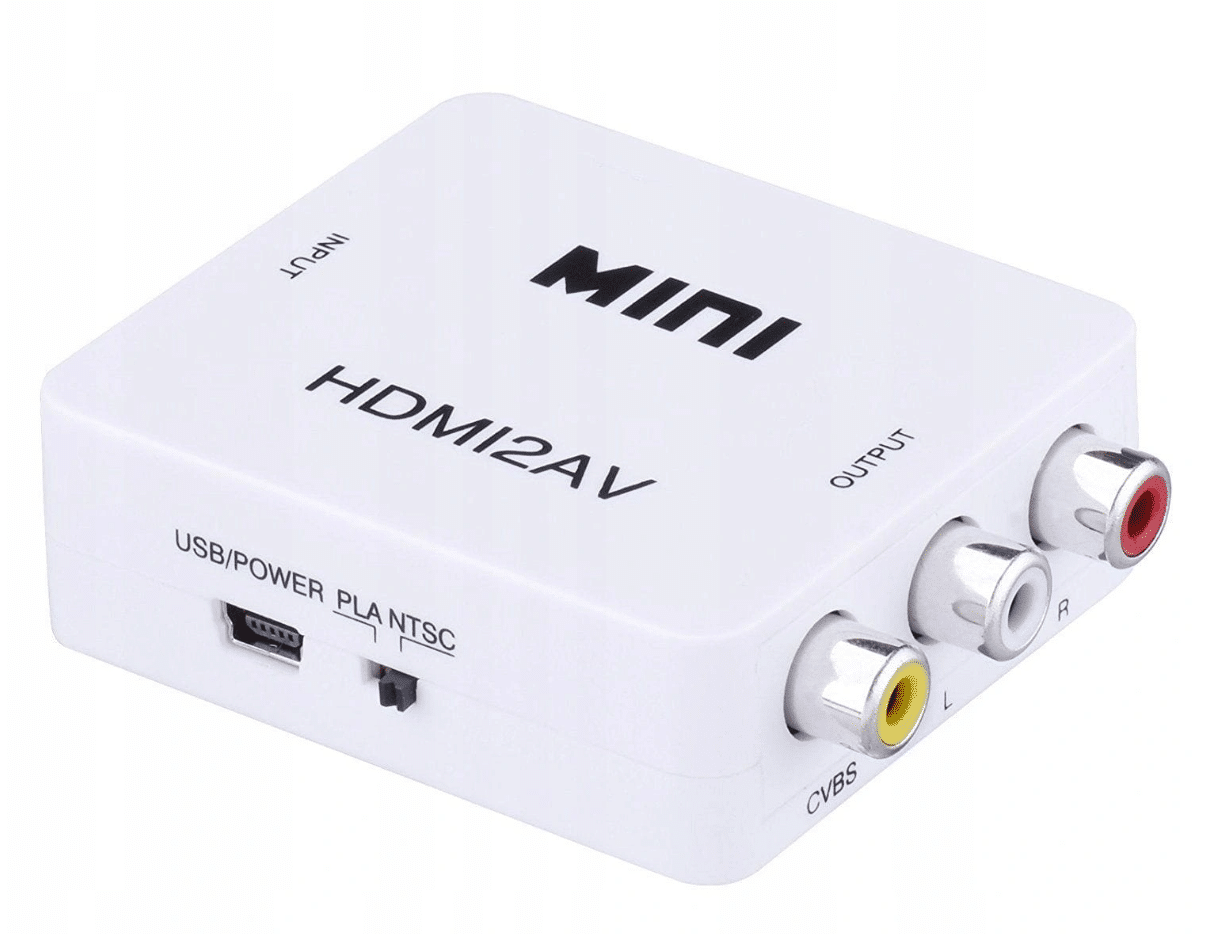
Check the direction printed on the converter. You need HDMI input to AV output, not an AV-to-HDMI converter.
Three male-to-male RCA adapters
The outputs from the HDMI-to-AV converter and the AMI cable may have the same connector gender. Three male-to-male RCA adapters are therefore used to join:
- yellow to yellow,
- white to white,
- red to red.
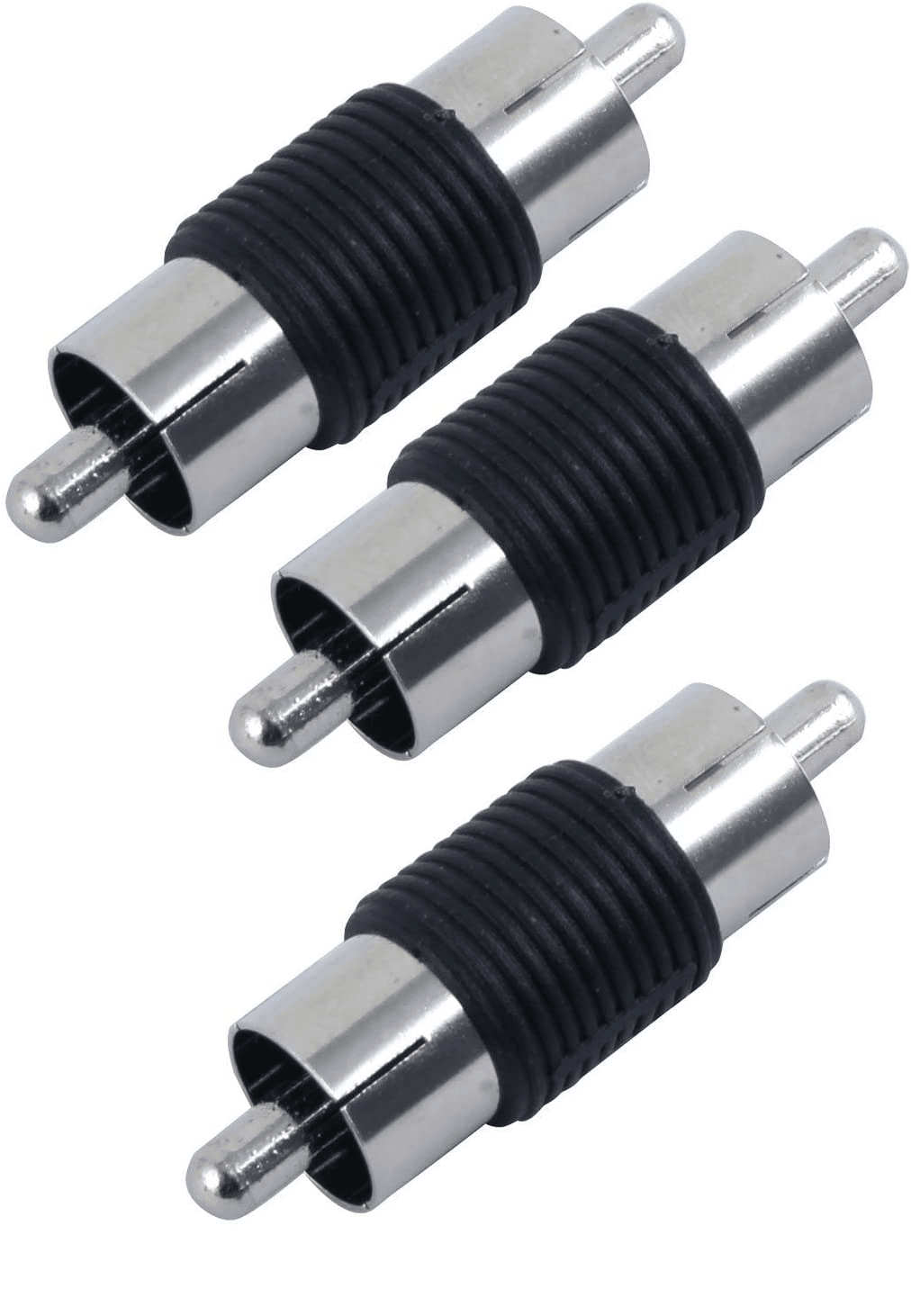
Do not interchange the video and audio connectors.
Regulated 12 V to 5 V USB power supply
Both the streaming stick and the HDMI-to-AV converter require power.
For a permanent installation, use a properly regulated automotive 12 V to 5 V converter with two suitable USB outputs:
- one USB output for the Android TV stick,
- one USB output for the HDMI-to-AV converter.
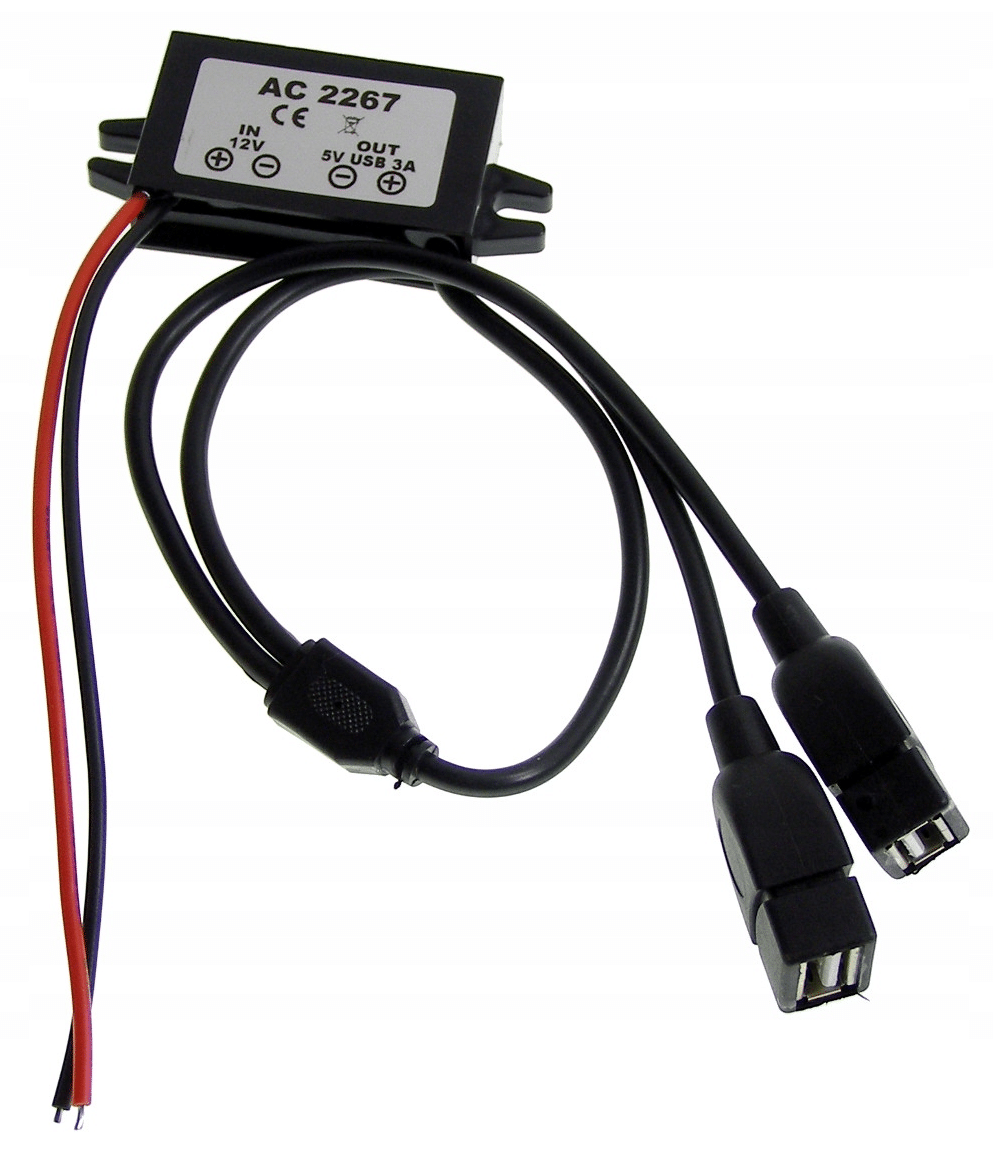
Do not connect a 5 V USB device directly to the vehicle’s 12 V electrical system.
Protected switched 12 V connection
The installation needs:
- switched 12 V after ignition,
- a suitable ground connection,
- an appropriately rated fuse.
Power can be obtained from a verified switched circuit, such as a suitable accessory socket circuit or an appropriate fuse-box position.
When using the fuse box, use a correctly installed add-a-fuse holder.
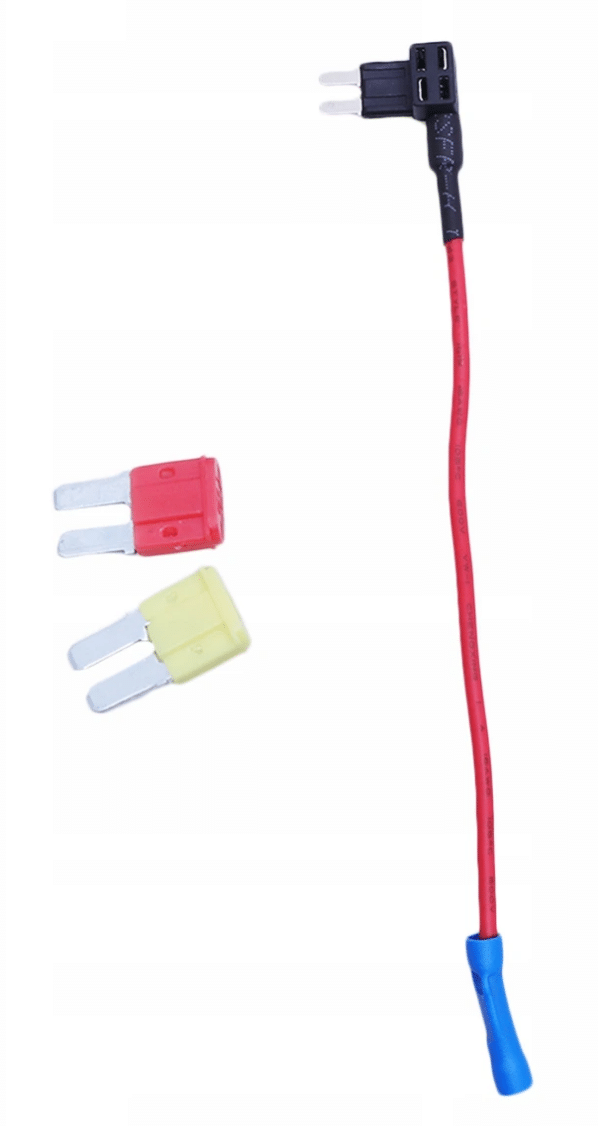
Always verify the circuit with a multimeter. Do not select a fuse position only because it is physically convenient. Avoid safety-critical circuits such as airbags, ABS and engine-management systems.
Connection diagram
Connect the components in this order:
- Connect the Android TV stick to the HDMI input of the HDMI-to-AV converter.
- Connect the converter’s yellow RCA video output to the yellow input on the AMI cable.
- Connect the white RCA audio output to the corresponding white AMI input.
- Connect the red RCA audio output to the corresponding red AMI input.
- Use the three male-to-male RCA adapters where required.
- Connect the AMI cable to the vehicle’s Audi Music Interface port.
- Connect separate regulated 5 V USB power to the streaming stick and converter.
The complete signal path is:
Android TV HDMI output → HDMI-to-AV converter → composite RCA → AMI cable → MMI 3G Plus
Test the setup before permanent installation
Before hiding cables or connecting permanent power:
- Connect the components temporarily.
- Power the Android TV stick and HDMI converter from known working USB supplies.
- Switch on MMI.
- Open the Media or Source menu.
- Select the external AMI source.
- Confirm that a picture appears.
- Test left and right audio channels.
- Check that the Android TV remote works.
- Connect the device to Wi-Fi or a phone hotspot if required.
A temporary test makes it easier to identify a faulty cable, converter or power supply.
Install the power supply
For a permanent installation:
- Identify a switched 12 V circuit with a multimeter.
- Confirm that the circuit switches off when the vehicle is shut down.
- Install an appropriately rated fuse close to the power connection.
- Connect the regulated 12 V-to-5 V converter.
- Provide separate USB power connections for the Android stick and HDMI converter.
- Insulate every connection.
- Secure the converter and wiring to prevent movement and rattling.
Do not use twisted, exposed wires or an unfused permanent connection.
Make sure the devices shut down after the vehicle is switched off. A permanently powered Android stick can discharge the battery.
Select the video source in MMI
After completing the connections:
- Switch on the ignition.
- Allow MMI 3G Plus to start.
- Open MEDIA.
- Select the connected AMI or external AV source.
- Switch on the Android TV device.
- Wait for its startup screen.
If audio works but there is no image, confirm that the correct external video source has been selected and that the AMI cable supports video.
Internet connection
The Android TV device requires an internet connection for streaming services.
Depending on the device, it can connect to:
- a mobile phone hotspot,
- an in-car Wi-Fi hotspot,
- another compatible Wi-Fi network.
Internet connectivity comes from the Android TV device. The RCA/AMI connection carries only video and audio.
Video in Motion
The factory MMI may disable video on the front display when the vehicle moves.
Information about MMI 3G Video in Motion is available here:
Any Video in Motion configuration must be used responsibly and legally. It must not be used to let the driver watch video while driving.
Video presentation
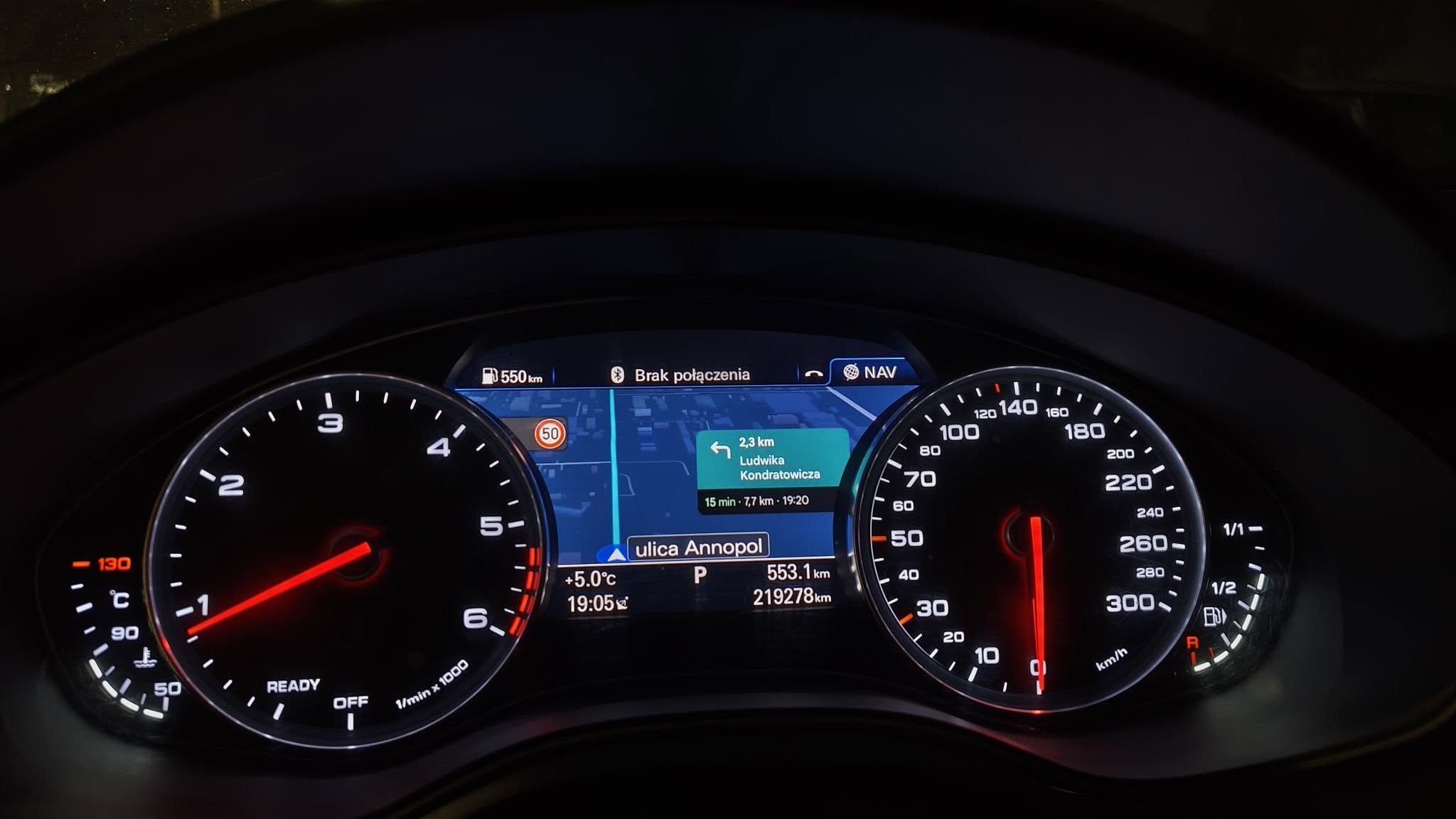
The video shows the completed Android TV installation operating through MMI 3G Plus.
No picture on the MMI screen
Check:
- the AMI cable supports composite video,
- the converter direction is HDMI-to-AV,
- the converter is receiving 5 V power,
- the yellow RCA connectors are joined correctly,
- the correct AMI source is selected,
- the Android TV stick is producing an HDMI signal,
- the converter supports the video standard accepted by the MMI.
Some converters include a PAL/NTSC selector. If the image is missing, unstable or displayed incorrectly, test the other setting while the vehicle is parked.
Picture but no sound
Check:
- red and white RCA connections,
- MMI source volume,
- Android TV volume,
- audio-output settings on the streaming device,
- power to the HDMI-to-AV converter.
Confirm that both left and right channels are connected.
Device restarts or loses power
If the Android TV stick repeatedly restarts:
- verify that the 5 V converter provides sufficient current,
- use suitable USB power cables,
- check the ground connection,
- measure voltage while both devices are operating,
- verify that the selected 12 V circuit remains active as expected.
Do not replace the fuse with a higher rating to conceal an electrical problem.
Screen quality limitations
The Android TV device may generate a high-resolution HDMI signal, but the converter changes it to composite video before sending it to MMI.
As a result:
- fine text may be difficult to read,
- the image will not have native HDMI quality,
- 4K capability provides no practical display-quality advantage,
- interface scaling may need adjustment.
Select a lower output resolution on the Android TV device if the HDMI-to-AV converter cannot synchronise reliably.
Installation summary
The required hardware path is:
Android TV stick → HDMI-to-AV converter → three RCA connections → AMI video cable → MMI 3G Plus
The Android device and HDMI converter require separate regulated 5 V power. Test the complete setup before installing permanent wiring and make sure the system switches off with the vehicle.

0 comments
Sign in or create an account to leave a comment →