MIB2 A6/A7 Cluster patch - installation instructions
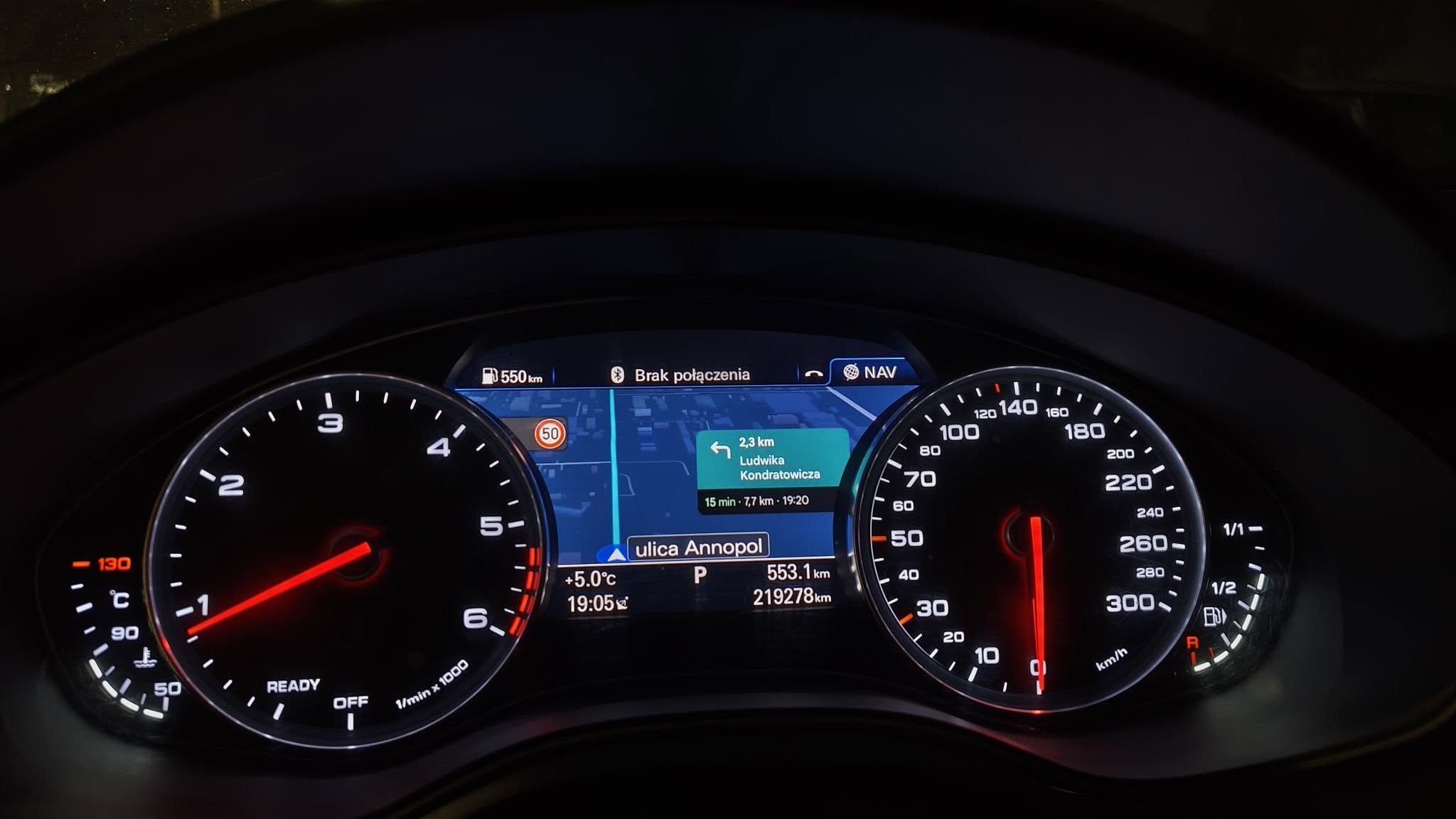
This guide explains how to install the MIB2 Cluster Map script on a compatible Audi A6 or A7 C7.5. The script enables a compatible phone’s navigation map to appear on the digital instrument cluster.
Link to product: click here
Important: CarPlay and Android Auto are required
This script does not add, activate, or install Apple CarPlay or Android Auto. The relevant feature must already be activated and working on your MMI before you install the script. You also need a compatible digital instrument cluster.
Check compatibility first
The documented compatibility for this Audi application is:
- Audi A6 C7.5 facelift with Harman MIB2 High firmware MHI2_ER_AU57x_K3663 / also _1
- Audi A7 C7.5 facelift with Harman MIB2 High firmware MHI2_ER_AU57x_K3663 / also _1
- US Audi A7 C7.5 with firmware MHI2_US_AU57x_K3341 / also _1 - Android Auto map support is reported; Apple CarPlay has not been confirmed
The pre-facelift Audi A6 C7 firmware trains MHI2_ER_AU57x_P3236 and MHI2_ER_AU57x_P3634 are not currently listed as supported. MIB2 Qualcomm (MHI2Q_) and MIB2 Standard (MST2_) units are also outside this guide’s compatibility.
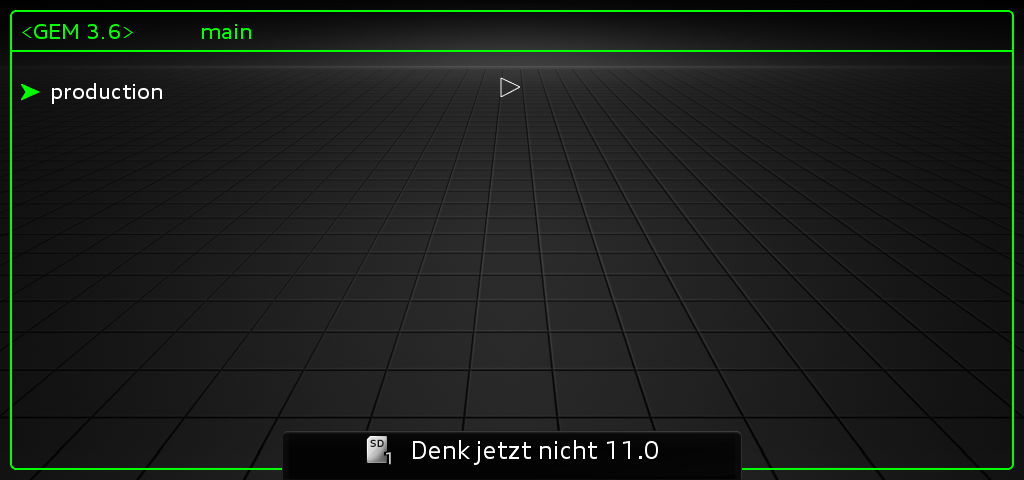
If you are unsure which MMI firmware is installed, check the software train in the MMI’s Green Engineering Menu before proceeding. Vehicle model and year alone are not enough to confirm compatibility.
What you need
- A compatible Audi A6/A7 C7.5 with a digital instrument cluster
- Apple CarPlay or Android Auto already activated and working
- An SD card, 16–32 GB, formatted as FAT32
- The MIB Cluster Map installation package
- A stable vehicle power supply: keep the engine running or connect a suitable battery charger during installation
Prepare the SD card
- Format the SD card as FAT32.
- Extract the installation archive on your computer.
- Copy the contents of the archive to the root of the SD card. Do not put the files inside an extra enclosing folder.
The card should contain these items at its top level:
ClusterMap/ Custom/ metainfo2.txt Swdlautorun.txt- Insert the card into SD slot 1. Leave the other SD slot empty.
Run the installation
- Make sure the vehicle has a stable power supply. Keep the engine running or connect a suitable charger.
- The installer may start automatically after the SD card is inserted. If it does not, open the MMI software update menu (REM):
- On Audi MMI, the service/update menu is accessed using BACK + the upper-left control button.
- Developer mode must be enabled on the infotainment unit.
- Select Software updates/versions → Update → the SD card → MIB Cluster Map.
- Select the MIB Cluster Map package and allow the update to complete without interrupting vehicle power or removing the SD card.
- If a “Version back documentation” screen appears at the end, select Cancel.
- Restart the MMI by holding its power button for approximately 10 seconds.

Test the map display
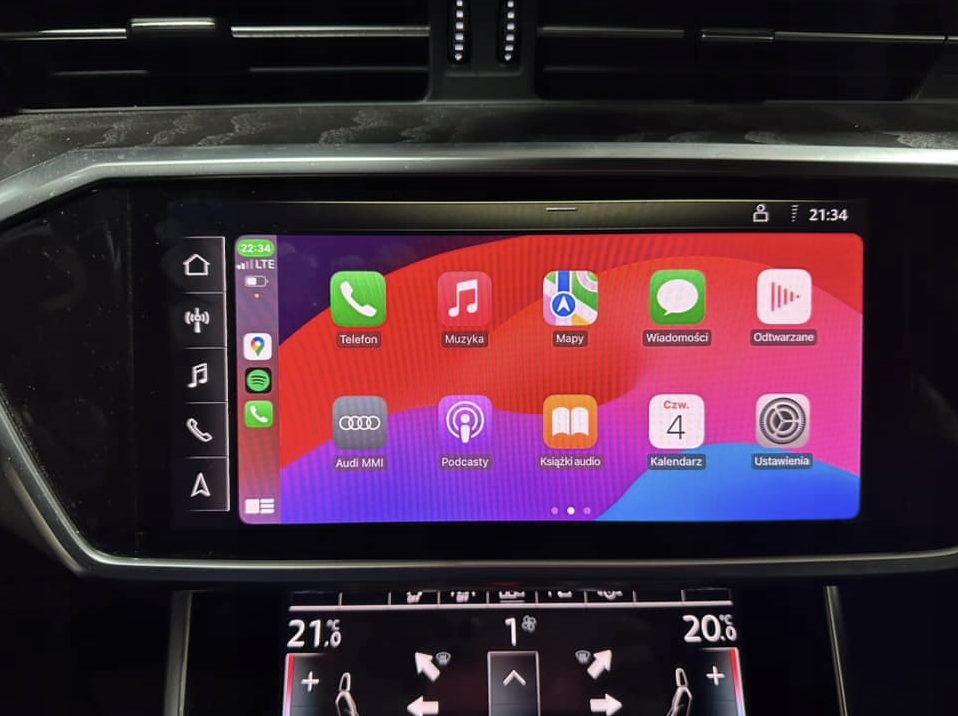
- Connect your phone using the already working Apple CarPlay or Android Auto connection. A wired connection is recommended.
- Open a supported navigation app, such as Google Maps or Waze.
- Use the steering wheel controls to select the map view on the digital instrument cluster.
If you use an iPhone and the map does not appear after installation, open the CarPlay settings on the iPhone, choose Forget This Car, then reconnect the phone and set up CarPlay again.
Important limitations and safety information
- The script modifies system files on the MMI unit. An interrupted or unsuccessful installation may affect the phone connection or MMI display.
- Install only on a vehicle you own or are authorised to modify. Keep the original installation files and SD card available.
- Never install, troubleshoot, or test the script while driving.
- Some wireless CarPlay or Android Auto adapters may not transmit the second-screen map to the cluster. If the map does not appear, test with a USB cable.
- Map content and features depend on the navigation app. The script only passes the phone’s cluster display to the instrument cluster.
Uninstalling
The project provides an uninstall option in the MMI Green Engineering Menu under ClusterMap. Choose Uninstall and restore original state, then restart the MMI. Follow the package’s current documentation if the menu is unavailable.

0 comments
Sign in or create an account to leave a comment →