How to Enable MIB2 Developer Mode with OBDeleven
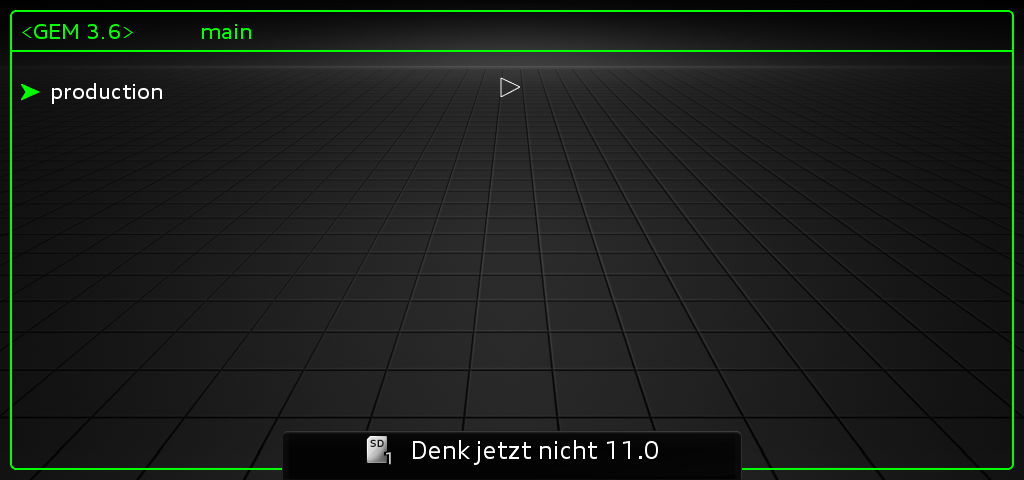
MIB developer mode unlocks additional diagnostic options and access to the infotainment system’s engineering menu. You can enable it through OBDeleven by changing an adaptation setting in the infotainment control unit.
Note: Available options vary by MIB unit and software version. Avoid changing unrelated adaptations, as incorrect settings may affect how the system works. Before starting, make sure OBDeleven is connected reliably and is compatible with your vehicle.
What you need
- An OBDeleven device compatible with your vehicle
- The OBDeleven app on your phone
- Access to the infotainment control unit, usually listed as 5F – Information Electronics or Information Control Unit
- Security access code 20103, if supported by your unit
Menu names may differ depending on the app version and vehicle configuration.
Enable MIB developer mode step by step
1. Connect OBDeleven and scan the vehicle
Plug the OBDeleven device into the diagnostic port, open the app, and connect to the vehicle. Scan the control units, then open the infotainment unit. It may be listed as Information Control Unit, Information Electronics, or 5F.

2. Open Security Access
In the control unit menu, select Security Access. Enter 20103 and confirm. If the app says the code is invalid or unavailable, don’t try random codes. Check whether this procedure supports your MIB unit and software version.

3. Change the service mode
After access is granted, find Change service and select Development Mode. Confirm the change if the app asks you to do so.

4. Open Adaptation
Return to the infotainment control unit menu and select Adaptation. This section contains the unit’s adaptation channels. For this procedure, change only the setting described below.
5. Activate “Developer Mode”
Search for Developer Mode in the adaptation list. Open the matching channel, change its value to Activated, and save the change. Follow any confirmation prompts shown in the app.
Developer mode should now be enabled. Depending on the unit, you may need to restart the infotainment system or reconnect to the control unit.

How to check that developer mode is enabled
Disconnect and reconnect OBDeleven, then return to the adaptation menu. Check that Developer Mode is set to Activated. On some systems, enabling it provides access to a test or engineering menu. The method for opening that menu varies by unit and vehicle.
If the option is unavailable
The Developer Mode channel may not appear on every MIB unit. This can depend on the hardware, software version, diagnostic access restrictions, or whether the control unit supports the function. Check the unit identification and software version before trying another procedure.

0 comments
Sign in or create an account to leave a comment →