Audi MMI 3G Middle East to Europe Conversion – Saudi Arabia & GCC Guide

Before You Start – Check the Current Firmware Region
Middle East Audi vehicles do not always require the same conversion procedure as North American cars.
Before changing anything, check the complete MMI software version.
If the software train begins with:
BNav_EU_
HNav_EU_
HN+EU
HN+R_EU_
the infotainment unit is already running a European firmware branch.
In that case, a full firmware-region conversion may not be required. The remaining work can involve navigation region configuration, European maps, map activation and radio frequency adaptation.
If the software train belongs to another region, additional firmware or EEPROM work may be required.
Do not continue until the exact MMI system and software train have been identified.
Which Systems Does This Guide Cover?
This guide is intended for Audi MMI 3G systems such as:
- BNav_ – MMI 3G Basic
- HNav_ – MMI 3G High
- HN+_ – MMI 3G Plus
- HN+R_ – MMI 3G Plus
It does NOT cover:
- MHI2_
- MHI2Q_
- MHS2_
- MH2p_
- MHI3_
- MST2_
MIB1, MIB2, MH2p and MIB3 region conversions use different procedures.
What Needs to Be Changed During a Middle East to Europe Conversion?
Depending on the current configuration, the conversion can involve:
- checking the existing firmware region
- updating to a compatible firmware if required
- enabling the Hidden Green Menu
- enabling User Defined Mode
- enabling Ignore Region and Variant
- changing the MMI region to EU
- changing the navigation database region to EU
- removing the old navigation database where required
- installing compatible European navigation maps
- activating the maps where required
- adapting radio frequency configuration for Europe
Not every vehicle requires every step.
The exact procedure depends on the current software train and regional configuration.
Step 1 – Check Whether a Firmware Update Is Required
If your MMI already uses a compatible European firmware branch, you may only need to update it to the appropriate supported version before continuing.
Do not choose firmware only by looking for the highest version number.
The update must match:
- the MMI family
- the current software train
- the hardware
- the intended region
Bundle updates packs:
- for Bnav - Audi MMI 3G Basic / Bundle – Latest Maps & Firmware & Green menu activator – 5.36.1 & K0260_1_D1 – Europe! 2023
- for Hnav - Conversion pack Audi MMI 3GH / 3G High – Latest Maps & Firmware – 6.36.0 & K0257_6_D1 – Europe! – MMI 3G Maps
- for HN+ - Conversion pack Audi MMI 3GP HN+ / 3G Plus – Latest Maps & Firmware. 6.36.0 & K0942 – Europe! MMI 3G Maps
- for HN+R - Conversion pack Audi MMI 3GP HN+R / 3G Plus – Latest Maps & Firmware. 6.36.0 & P1001 – Europe! MMI 3G Maps
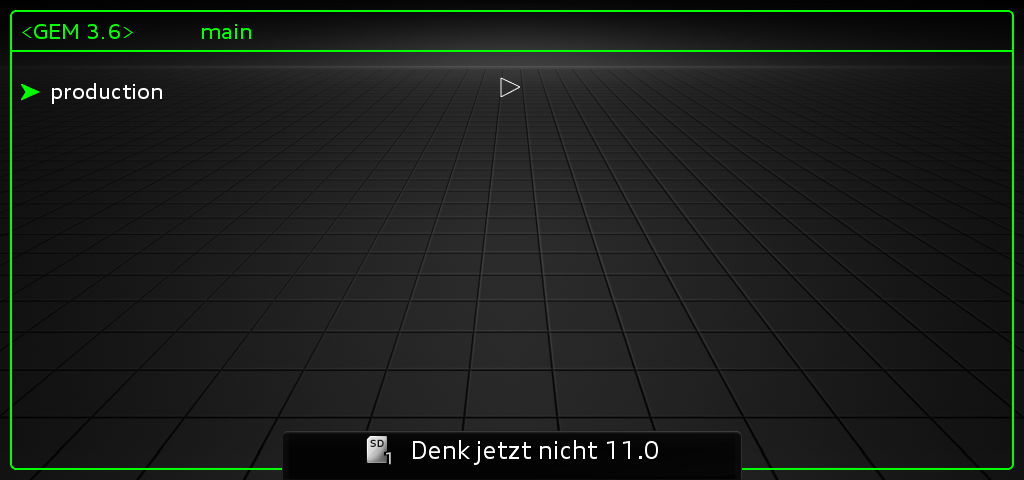
Step 2 – Enable the Hidden Green Menu
The Hidden Green Menu must be available before changing the regional navigation settings.
Step 3 – Enable User Defined Mode
These options allow access to region-specific update components required during the conversion.
- User defined mode.
- Ignore region and variant.
In Green menu, you have to go to the: SWDL, and enable:

Step 4 – Change the MMI Region to Europe
After that we need to change the region. So in Hidden Green Menu go to the: System > Internal

and select there EU
Step 5 – Change the Navigation Database Region
Then go to the: Nav -> databaseupdate And Change your "Active HDD Nav DB" to the region/country of your choice in our case: EU.

MMI 3G Navigation Region Values
- Unknown
- Default
- EU
- North America
- South America
- AGCC
- Korea
- Japan
- China
- Asia Pacific
- South Africa
- Australia / New Zealand
- India
- Taiwan (ROC)
- AGCC_2 (Arabic)
- Turkey
- Chile
- No Navi DB
Step 6 – Install European Navigation Maps
After the navigation region has been configured for Europe, the European navigation database can be installed.
Where required by the procedure, the previous navigation database and navigation partition must be removed correctly before installing the European maps.
Do not simply place European map files on an SD card while leaving the system configured for another navigation region.
Please remember to remove old nav database and nav partition (everything is described in tutorials).
There will be one more thing to do, change radio frequencies to work with EU. To do this you can use OBDeleven, just find and click option to modify radio frequencies.
I hope this tutorial will help you with Middle East conversion. IF any questions just ask in comment :-)
When Is an EEPROM Change Required?
Some Middle East to Europe conversions can require EEPROM changes depending on the original regional configuration and firmware branch.
EEPROM modification is considerably more advanced than changing settings in the Hidden Green Menu.
Before modifying EEPROM:
- identify the exact MMI system
- confirm that EEPROM modification is actually required
- create a verified backup
- do not use EEPROM data intended for another MMI platform
If your MMI already uses a compatible EU firmware branch, EEPROM modification may not be necessary.

0 comments
Sign in or create an account to leave a comment →