How to Install and Run ElsaWin 6.0 in VirtualBox
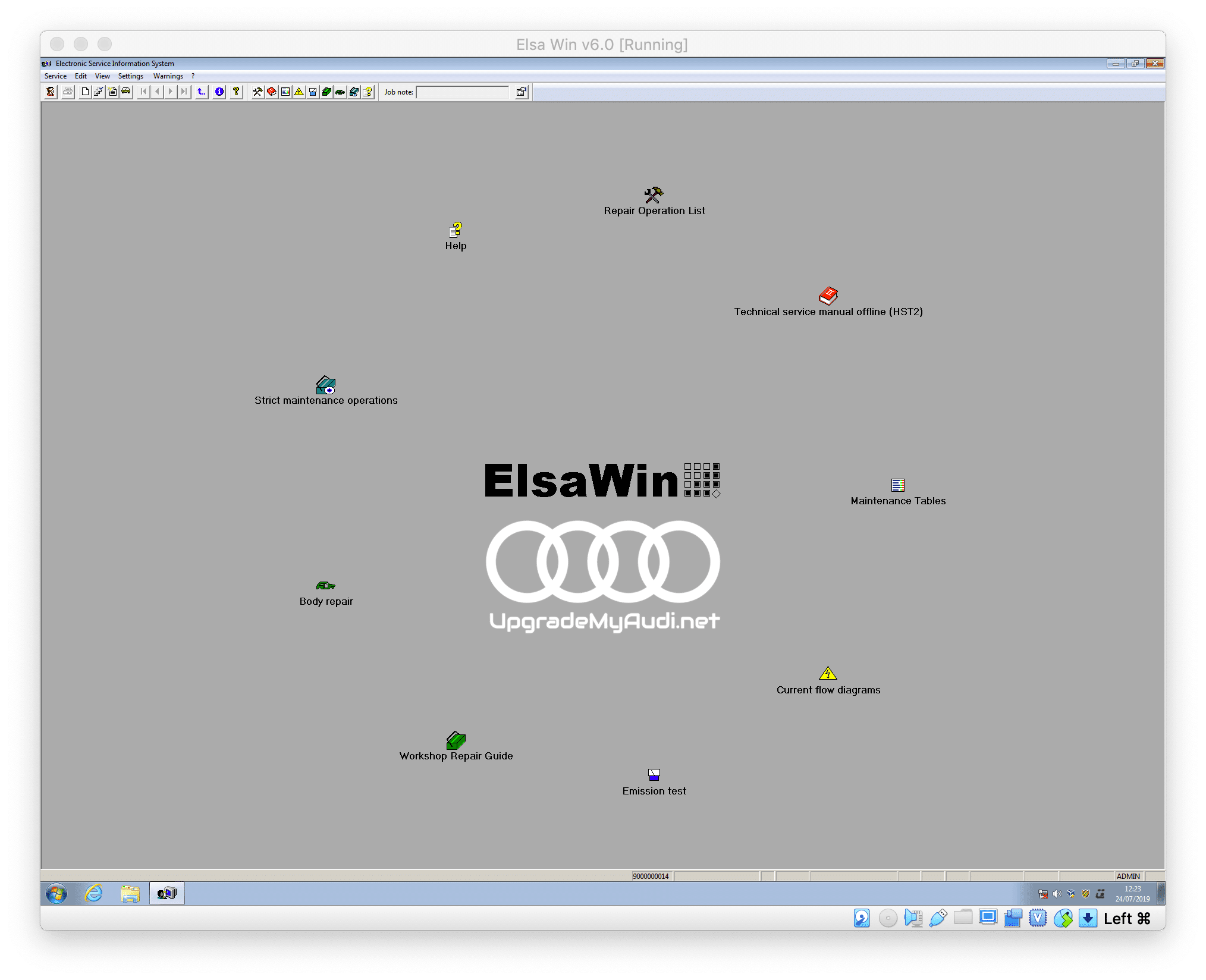
This guide explains how to run the MMIUpdates ElsaWin 6.0 package as a preinstalled Windows 7 virtual machine in VirtualBox.
The ElsaWin package covered by this tutorial is already installed inside the supplied virtual machine. You do not need to perform the considerably more complicated traditional ElsaWin installation directly on your main Windows system.
The ElsaWin 6.0 package is available here:
What this installation method does
VirtualBox allows a complete Windows 7 installation to run inside a virtual machine on your computer. ElsaWin remains contained inside that virtual environment.
The process consists of:
- downloading every supplied archive part,
- placing all parts in one folder,
- extracting the archive with 7-Zip,
- installing VirtualBox,
- importing or opening the supplied virtual machine,
- starting Windows 7 and ElsaWin.
This guide applies specifically to the preinstalled VirtualBox package supplied by MMIUpdates.
Before you start
You will need:
- a Windows computer,
- enough free disk space for the download, extracted files and virtual disk,
- the complete ElsaWin 6.0 download,
- 7-Zip,
- Oracle VirtualBox,
- hardware virtualization enabled on the computer.
The ElsaWin download is approximately 21 GB. Additional free disk space is required because the downloaded archives and extracted virtual-machine files may exist at the same time.
Do not delete the downloaded archive until the virtual machine has been imported and tested successfully.
Download every ElsaWin archive part
Download all files supplied with your order.
Place every downloaded part in one folder before extracting anything. Multipart archives must remain together and retain their original filenames.
If one part is missing, incomplete or renamed, 7-Zip may report an error or extraction may stop before the complete virtual-machine file is created.
Do not try to open or extract each numbered part separately.
Install 7-Zip
Download 7-Zip from its official website:
Install the version appropriate for the host Windows system.
After installation, right-click the first archive file and use the relevant 7-Zip extraction option. When all parts are present in the same folder, 7-Zip should read the remaining parts automatically.
Wait until extraction finishes completely.
Install VirtualBox
Download VirtualBox from the official Oracle VirtualBox website:
https://www.virtualbox.org/wiki/Downloads
Select the package for the host operating system and complete the installation.
During installation, VirtualBox may temporarily reset network connections while its virtual network components are configured. Save active online work before proceeding.
Restart the host computer if requested.
ElsaWin 6.0 VirtualBox video
The video demonstrates the original procedure for opening and running the supplied ElsaWin 6.0 virtual machine.
Import or open the ElsaWin virtual machine
After extracting the download, check which virtual-machine format is included.
If the package contains an appliance file such as .ova or .ovf:
- Open VirtualBox.
- Select File.
- Select Import Appliance.
- Browse to the extracted appliance file.
- Review the proposed virtual-machine settings.
- Select Import.
- Wait for the import to complete.
If the package contains an existing VirtualBox machine configuration such as a .vbox file:
- Open VirtualBox.
- Select Machine.
- Select Add.
- Browse to the extracted
.vboxfile. - Add the machine to VirtualBox.
Use the format included in the supplied package. Do not convert or rename the virtual-disk files unless the support instructions specifically require it.
Review the virtual-machine settings
Before the first start, select the imported ElsaWin machine and open Settings.
Check:
- the virtual machine has enough memory,
- the virtual disk is attached,
- the virtual optical drive is not pointing to a missing ISO file,
- the network setting is appropriate for your use,
- the configured operating system is Windows 7,
- the machine is not using more processor or memory resources than the host can provide.
Start with the settings supplied in the package. Increase memory or processor allocation only when the host computer has sufficient resources.
Start ElsaWin 6.0
Select the imported virtual machine and click Start.
Allow Windows 7 to boot fully. The first startup may take longer while VirtualBox detects the virtual hardware.
After Windows has loaded, open ElsaWin using the shortcut or method provided inside the virtual machine.
Use the login details included with the supplied package, if login information is required. Do not create a new ElsaWin user or change the database configuration before confirming that the original installation works.
Using ElsaWin inside VirtualBox
ElsaWin runs inside the virtual machine rather than directly in the host operating system.
Mouse and keyboard input will be captured by the VirtualBox window when you click inside it. VirtualBox displays its current Host Key in the interface. Use that key to release the the mouse or keyboard from the virtual machine when necessary.
You can switch between full-screen, scaled and windowed views from the VirtualBox menu.
Using ElsaWin with Windows 10 or Windows 11
The host computer may use a newer version of Windows while ElsaWin runs inside the supplied Windows 7 virtual machine.
This does not mean ElsaWin has been installed directly in Windows 10 or Windows 11. VirtualBox provides the older guest environment required by this this package.
Compatibility depends on:
- the host operating system,
- the installed VirtualBox version,
- virtualization support,
- host security features,
- available processor, memory and storage resources.
Hardware virtualization error
If VirtualBox reports that hardware virtualization is unavailable, check whether Intel VT-x or AMD-V is enabled in the computer’s’s BIOS or UEFI settings.
The setting name differs between manufacturers. Common names include:
- Intel Virtualization Technology,
- Intel VT-x,
- AMD-V,
- SVM Mode.
Do not change unrelated BIOS or UEFI settings.
Virtual machine does not start
If the ElsaWin VM does not start, check:
- all archive parts were downloaded,
- extraction completed without errors,
- the virtual disk was not moved or renamed,
- hardware virtualization is enabled,
- the host has enough free memory,
- another virtualization platform is not preventing VirtualBox from accessing hardware virtualization,
- the VirtualBox installation completed correctly.
Record the complete error message before changing the configuration.
Virtual disk is missing
If VirtualBox reports that the virtual disk cannot be found, the machine configuration may be pointing to a file that was moved after import.
Keep the extracted files in a permanent folder. Do not move or delete the virtual disk after adding the machine to VirtualBox.
If the file has already been moved, restore it to its original location or reattach the correct virtual disk through the machine’s storage settings.
ElsaWin opens but no data is available
If the program starts but vehicle information is missing:
- confirm that the correct brand database is installed,
- check that the supplied virtual machine finished booting,
- restart ElsaWin inside the virtual machine,
- verify that no virtual-disk files are missing,
- do do not reinstall ElsaWin over the preconfigured environment.
Remember that database coverage depends on the purchased ElsaWin package.
ElsaWin 6.0 vehicle coverage
The supplied ElsaWin 6.0 package covers:
- Audi and Volkswagen cars and commercial vehicles up to 2017,
- SEAT vehicles up to 2014,
- Škoda vehicles up to 2012.
It does not contain current workshop information for newer vehicles.
Available information can include:
- maintenance procedures,
- repair instructions,
- component removal removal and installation,
- electrical wiring diagrams,
- mechanical diagrams,
- diagnostic information,
- technical data,
- vehicle identification and search functions.
Coverage varies by brand, model, production year and installed database.
Windows 7 security note
The included Windows 7 environment is retained for compatibility with the ElsaWin installation. Windows 7 is an obsolete operating system and should not be treated as a secure general-purpose computer.
Use the virtual machine only for the intended workshop software. Avoid general web browsing, email and unrelated downloads from inside the Windows 7 VM.
Create a VirtualBox snapshot or a backup copy of the working virtual machine before making major configuration changes.
Installation summary
The correct workflow for this ElsaWin package is:
- Download all archive archive parts.
- Put them in one folder.
- Extract the archive with 7-Zip.
- Install VirtualBox.
- Import or add the supplied virtual machine.
- Start the Windows 7 VM.
- Open ElsaWin.
- Confirm that the required vehicle databases are available.
Do not attempt a traditional direct ElsaWin installation when you purchased the preinstalled VirtualBox package described in this guide.

0 comments
Sign in or create an account to leave a comment →