How to Enable the Audi Lock Confirmation Beep with VCDS
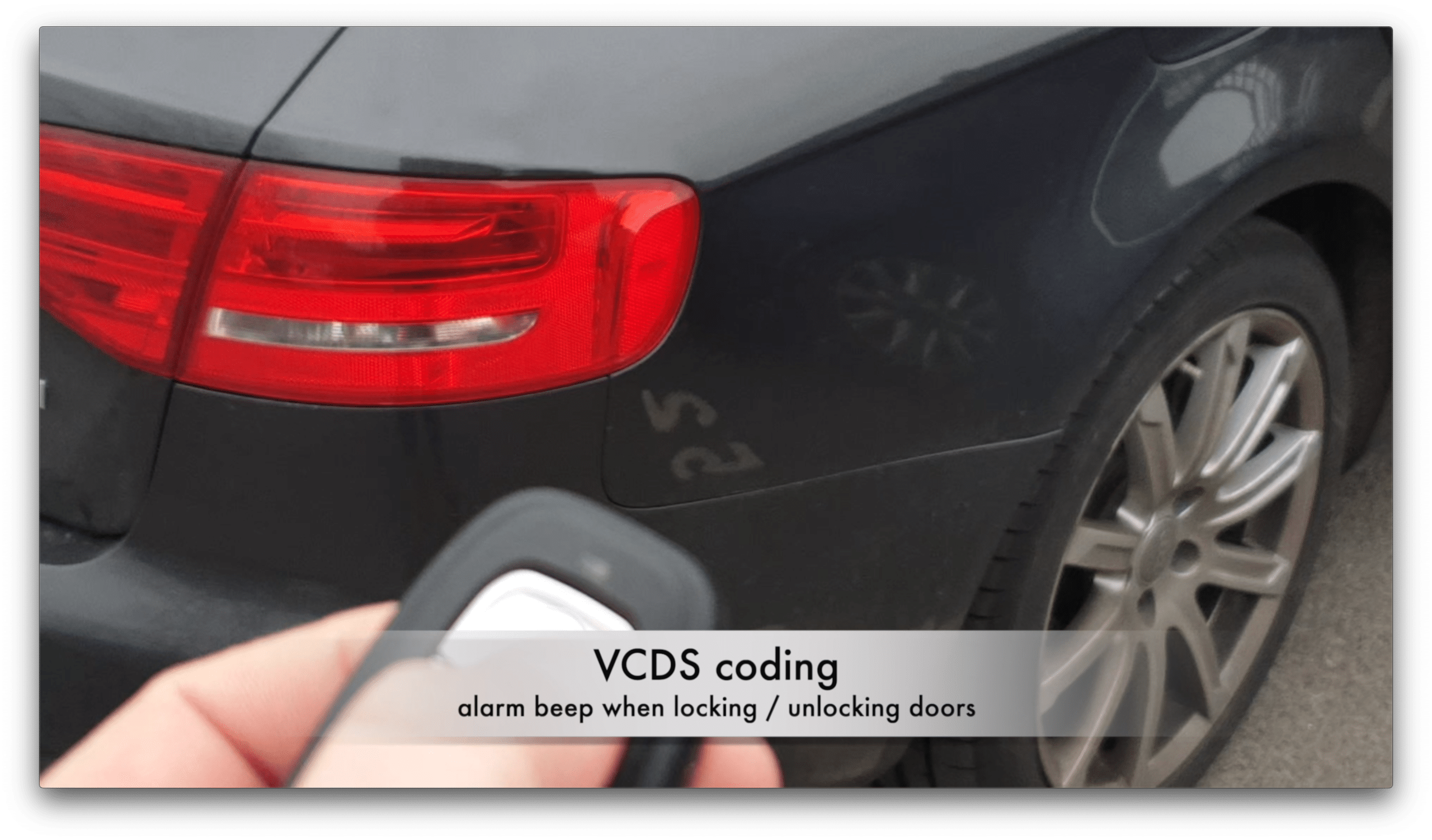
Selected Audi models can provide a short acoustic confirmation when the vehicle is locked. In compatible cars, this feature can be enabled through VCDS by changing the coding in the central convenience module.
The procedure shown below uses:
Control Module 46 → Long Coding → Byte 1 → Bit 2
This is the original method demonstrated on the vehicle in our video. It does not apply to every Audi model or control-module version.
What Does the Lock Confirmation Beep Do?
When the feature is active, the vehicle’s factory alarm siren or horn provides a short confirmation after the doors are locked.
This can be useful when:
- the indicators are difficult to see;
- the car is parked in a bright or busy area;
- you want audible confirmation that the locking command was received.
The sound does not prove that every window, boot lid or interior compartment is physically secure. It confirms that the vehicle has processed the locking request.
Requirements
Before starting, you need:
- a compatible Audi vehicle;
- a working factory alarm siren or suitable anti-theft alarm system;
- VCDS with a compatible diagnostic interface;
- a Windows computer;
- stable vehicle battery voltage;
- the original coding saved before any changes are made.
If the vehicle does not have the required alarm hardware, enabling the coding bit may have no effect.
Compatibility
This procedure is intended for Audi vehicles where the central convenience functions are available in:
Control Module 46 - Central Convenience
The exact coding layout depends on the vehicle platform, model year and installed control module.
Do not apply this instruction blindly when:
- Module 46 is not present;
- Byte 1 does not contain the described option;
- the Long Coding Helper displays a different label;
- the vehicle uses another module for central locking;
- VCDS does not provide coding information for the installed controller.
A coding position used in one Audi model can control a different function in another control module.
Before Changing the Coding
Create a complete Auto-Scan and save the original coding.
At minimum, copy the complete coding value from Module 46 and store it somewhere outside VCDS. This allows you to restore the original configuration if the new setting causes unexpected behaviour.
Do not change multiple bits at the same time. Make one change, save it and test the result.
VCDS Coding Procedure
Step 1: Connect VCDS
Connect the diagnostic interface to the vehicle’s OBD port and computer.
Switch on the ignition, but do not start changing any settings until VCDS has established reliable communication with the vehicle.
Step 2: Open the control module
From the VCDS main screen, select:
[Select] → [46 - Central Convenience]
If Module 46 is unavailable, stop here. This exact procedure does not match your vehicle’s electronic configuration.
Step 3: Open Coding
Select:
[Coding - 07]
Then open:
[Long Coding Helper]
Step 4: Locate Byte 1
Navigate to:
Byte 1
Find:
Bit 2
The label may refer to horn confirmation, acoustic confirmation or the anti-theft system, depending on the control-module label file used by VCDS.
Do not enable Bit 2 if its displayed description refers to a different function.
Step 5: Enable the option
Tick:
Bit 2
Close the Long Coding Helper to return the updated coding value to VCDS.
Step 6: Save the coding
Select:
[Do It!]
VCDS should confirm that the coding was accepted.
If the controller rejects the coding, do not repeatedly submit random values. Restore the original coding and verify compatibility.
Step 7: Test the vehicle
Switch off the ignition, leave the vehicle and close all doors, the bonnet and the boot.
Lock the vehicle using the remote key and listen for the acoustic confirmation.
Depending on the alarm system, the sound may occur immediately or after the vehicle confirms that all monitored openings are closed.
Installation Video
What If the Locking Beep Does Not Work?
The coding was accepted but there is no sound
Possible causes include:
- the vehicle does not have a factory alarm siren;
- the siren is faulty or disconnected;
- a door, bonnet or boot switch reports an open state;
- the installed control module does not support acoustic confirmation;
- another adaptation or regional setting controls the feature;
- the coding label does not match the controller.
Run an Auto-Scan and check the central convenience and alarm system for stored faults.
Module 46 is not available
Newer Audi platforms may manage central locking through a different control module. Do not use the Byte 1, Bit 2 instruction in another module unless its VCDS description explicitly identifies the same function.
Long Coding Helper does not show the option
The installed controller may use adaptations instead of long coding, or it may not support the feature. The available settings depend on the module hardware and software version.
The car beeps when locking but not when unlocking
That can be normal. Many vehicles provide acoustic confirmation only when locking. Unlock confirmation may be unavailable, controlled separately or prohibited by the installed configuration.
The original Byte 1, Bit 2 procedure should not be presented as a guaranteed method for enabling both sounds.
The alarm siren does not work during an alarm test
Diagnose the alarm system before changing more coding. An old or faulty siren, internal siren battery failure, wiring fault or stored diagnostic error can prevent acoustic confirmation.
How to Restore the Original Setting
Return to:
[46 - Central Convenience] → [Coding - 07] → [Long Coding Helper] → Byte 1
Restore Bit 2 to its original state or paste the complete original coding value saved before the modification.
Select [Do It!] and test the central locking again.
Safety and Legal Notes
Acoustic locking confirmation may not be permitted or may be restricted in some locations. Use the feature responsibly, particularly when the car is parked at night or in residential areas.
Only change coding options that are clearly identified for the installed control module. Incorrect long coding can disable vehicle functions or generate diagnostic faults.

0 comments
Sign in or create an account to leave a comment →